Step-by-step instructions
- Open the Aimee app URL: https://aimee.k3advisorygroup.com/
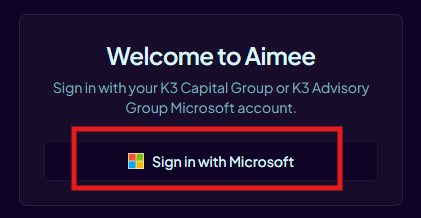
- Click "Sign in with Microsoft" as shown in the screeshot below.
- Select your K3 corporate account when prompted.
- Complete any multi-factor authentication (MFA) or approval prompts.
- After sign-in, confirm your name appears in the app sidebar.
K3 accounts only
You must use a K3 domain account. External or personal Microsoft accounts are not allowed.
When your session expires
Microsoft tokens expire periodically. If you see an authentication error or are redirected to the login page mid-session, sign in again — your conversation history is preserved.
If Microsoft 365 tools stop responding with a permissions error, sign out and sign back in to refresh your delegated access token.