What is Aimee?
Aimee is K3 Advisory Group's internal AI assistant. You can use it to answer questions, summarise documents, draft emails, search your Microsoft 365 data, and more — all from a single chat interface.
Creating your account
Getting started takes under two minutes. Navigate to the Aimee app URL provided by your organisation and sign in using Microsoft single sign-on (SSO) with your K3 work email.
Important
You must use a K3 domain account. External accounts are not permitted.
Navigating the chat interface
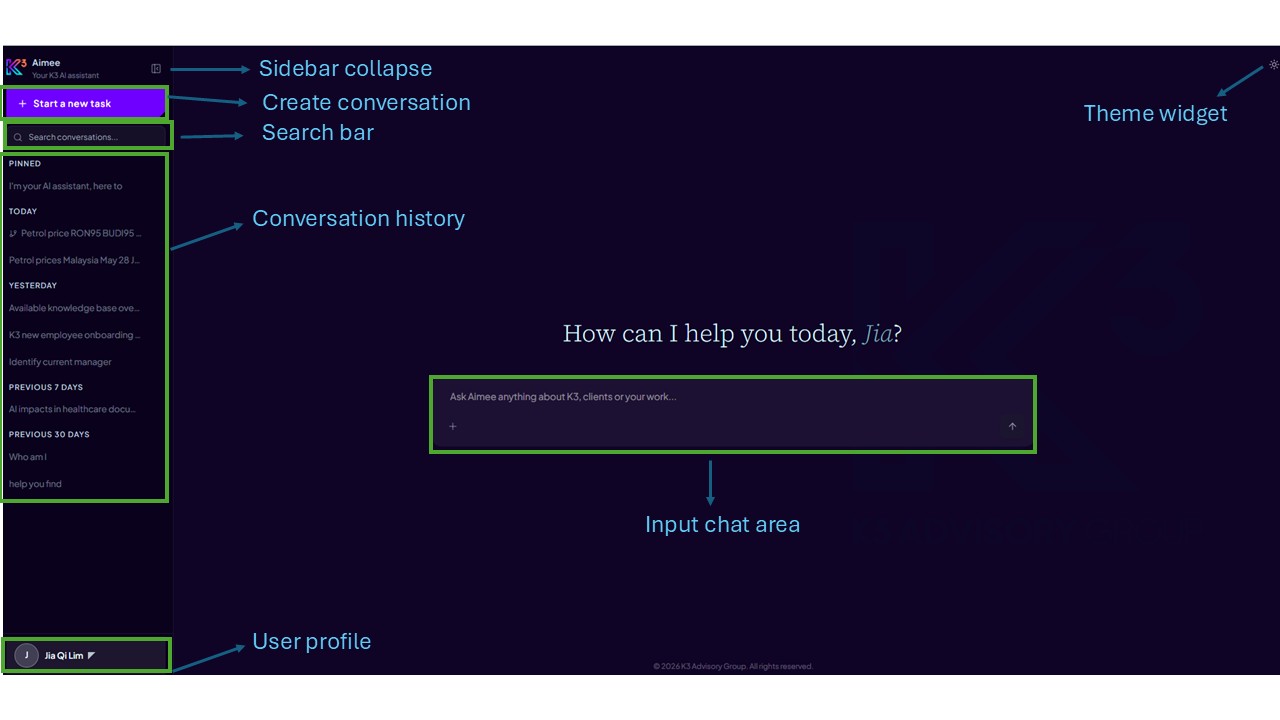
Once logged in you will land on the main chat interface. Key areas:
- Chat input area — type your question or prompt here.
- Attach/Add button — upload a file or toggle Microsoft 365 tools on or off.
- Send button — submit your message.
- "Start a new task" button (sidebar) — opens a fresh conversation.
- Theme toggle (top right) — switch between light and dark mode.
- Sidebar collapse icon — show or hide the conversation sidebar.
- Conversation search bar — filter your previous chats.
- Conversation history — grouped conversations listed in the sidebar.
- User profile section (sidebar footer) — sign out.
Next steps
You are up and running. Use the related articles below or browse the help centre to explore specific workflows.