Aimee/Help Centre/Attaching files to chat
Files & Documents

Attaching files to chat

Updated 2026-06-01·4 min read

How to upload a file in the chat composer, supported formats, size limits, and how to preview or remove an attachment.


How to attach a file

  1. Click the paperclip/attach icon in the message composer, drag files onto the composer, or paste a screenshot/image from your clipboard.
  2. Select or drop up to 5 files from your device. Supported formats: images, PDF, DOCX, XLSX, PPTX, TXT, CSV, MD.
  3. Ensure each file is 10 MB or smaller.
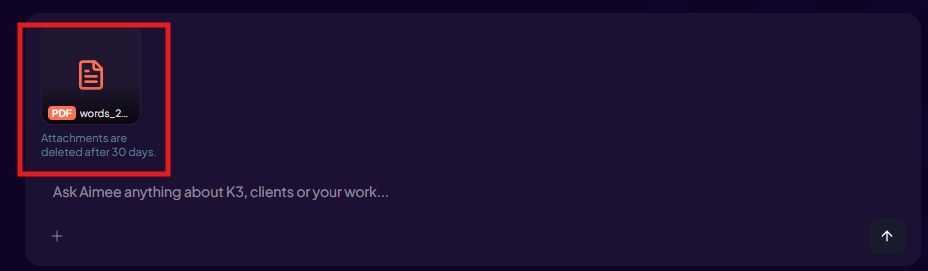
  4. Each file appears as its own preview in the composer. Click the × on a preview to remove it before sending.
  5. Press Send. The attachments are uploaded and included with your message.
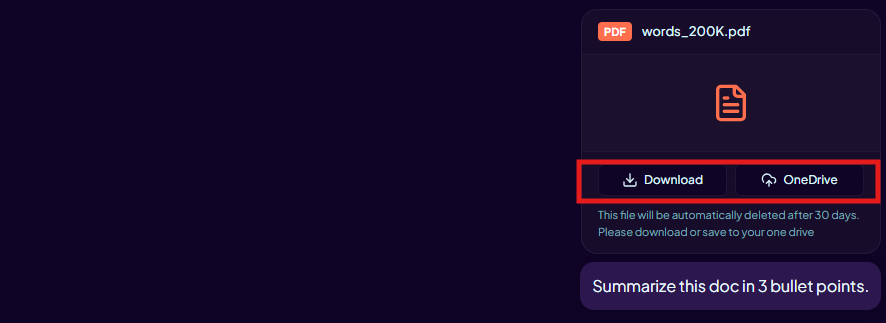
  6. After sending, click an attachment card in the chat thread to preview or download it.
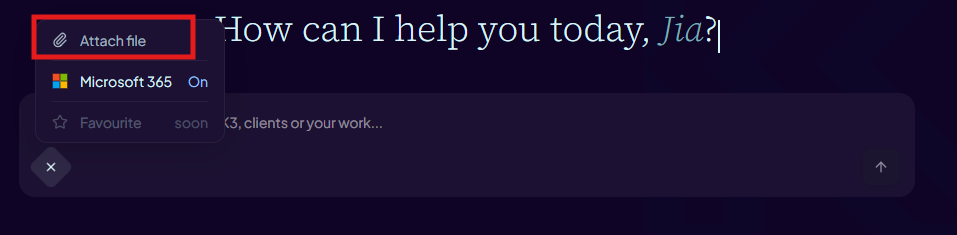
Attach file button in the message composer
Click the attach icon (paperclip), drag and drop up to 5 files, or paste an image into the composer.
PDF file attachment preview chip in the composer
The file appears as a chip in the composer. Click × to remove it before sending.
Download or Save to OneDrive options for an uploaded attachment
After sending, click the attachment chip to download it or save it to your OneDrive.

Screenshots and images pasted from the clipboard are attached automatically. Large blocks of pasted text may be automatically converted into a .txt attachment.

Still have questions?

Send a query or suggest a change to this help content.

Open in Outlook