Conversation actions
- Create a conversation: click "Start a new task" in the sidebar.
- Rename a conversation: open the ⋯ (ellipsis) menu on the conversation and choose Rename.
- Create a folder: click the folder-plus button beside search. Folders appear above pinned and chronological conversations.
- Move a conversation: open its ⋯ menu and choose Add to folder or Move or remove. On desktop, you can also drag a conversation onto a folder.
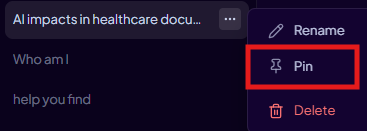
- Pin or unpin: open the ⋯ menu and choose Pin or Unpin. Unfiled pins appear below folders; folder pins appear first inside that folder.
- Reorder folders or pins: drag them on desktop, or use Move up and Move down from the ⋯ menu on desktop or mobile.
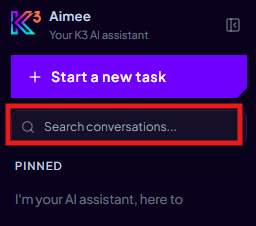
- Search conversations: use the search field to see flat Results with folder context where applicable.
- Delete a folder: use the folder ⋯ menu. Its conversations return to the main history and are not deleted.
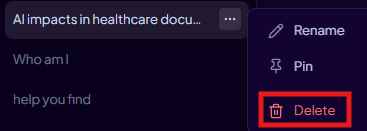
- Delete a conversation: open the ⋯ menu and choose Delete. This is permanent.
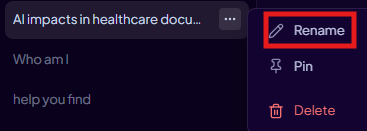
Conversation titles are auto-generated after the assistant's first reply. You can rename them at any time.