Email action card states
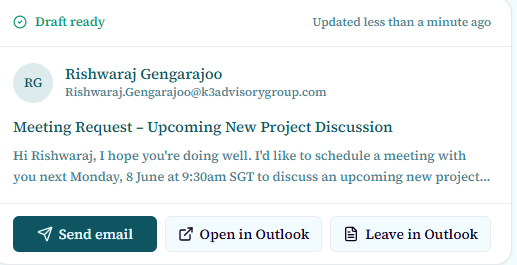
After Aimee drafts an email, an action card appears in the chat thread. The card shows a status badge that updates as you interact with it:
- Draft ready — the email has been created and is waiting for your decision.
- Sending — your send request is in progress.
- Sent — the email was sent successfully from your Outlook account.
- Kept as draft — the email was saved to your Outlook Drafts folder without sending.
- Failed — the send attempt encountered an error (see troubleshooting steps below).
What to do when a send fails
- Check that the Microsoft 365 tools toggle in the chat composer is still on.
- If you see a permissions error, sign out and sign back in to refresh your Microsoft 365 token.
- After signing back in, return to the conversation. The email action card will still be there. Try clicking Send again.
- If the send continues to fail, use the Open in Outlook button to open the draft directly in Outlook Web and send it from there.
A failed send does not lose the draft. The email content is preserved in the action card and can still be opened in Outlook.
Opening a draft in Outlook
You can always use the Open in Outlook button on an action card to open the draft in Outlook Web and send or edit it manually. This is the recommended fallback if Aimee's direct send is unavailable.